Logging a role
Logging a role is how a meeting role you took gets into your record. Do it whenever you like — that evening, or months later from your own notes.
7 steps
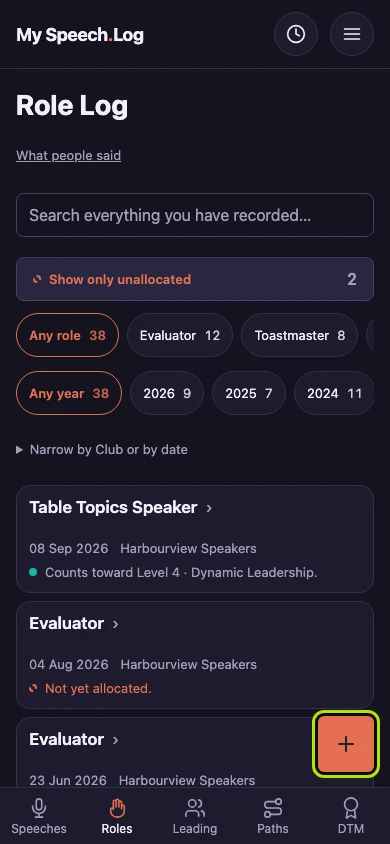
Press Roles to open your Role Log. Press the round + button. A form called Log something you did opens.
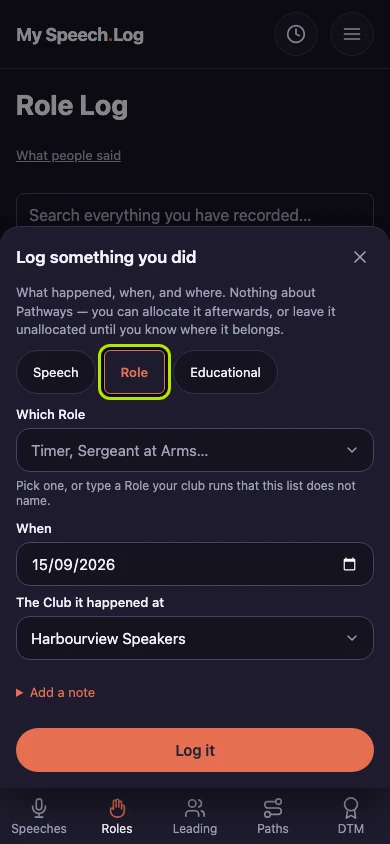
Check that Role is selected — it already is when you start from your Role Log. Press Speech or Educational instead if that is what you did.
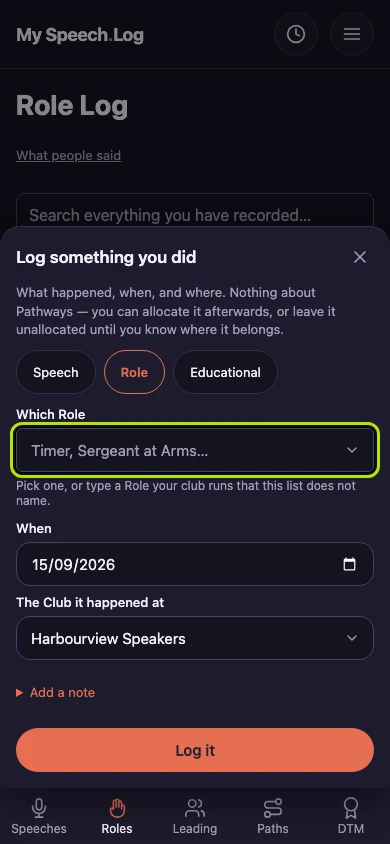
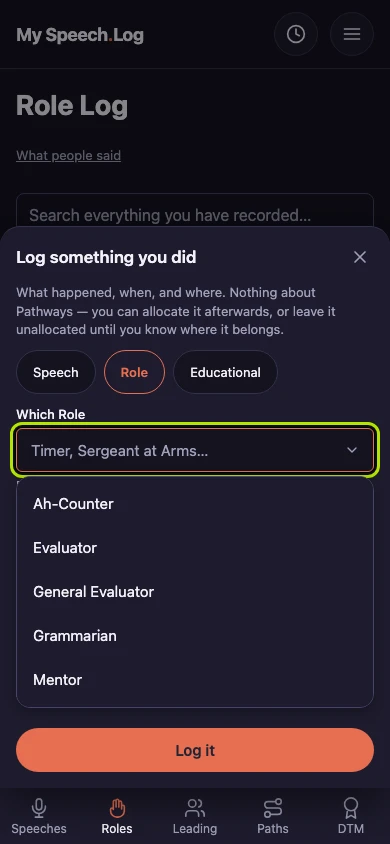
Press the box under Which Role. A list opens with the usual Toastmasters meeting roles, and any other roles you have logged before.
Choose your role from the list. If it is not there, type its name instead — Sergeant at Arms, for example. A role your Club made up is logged like any other.
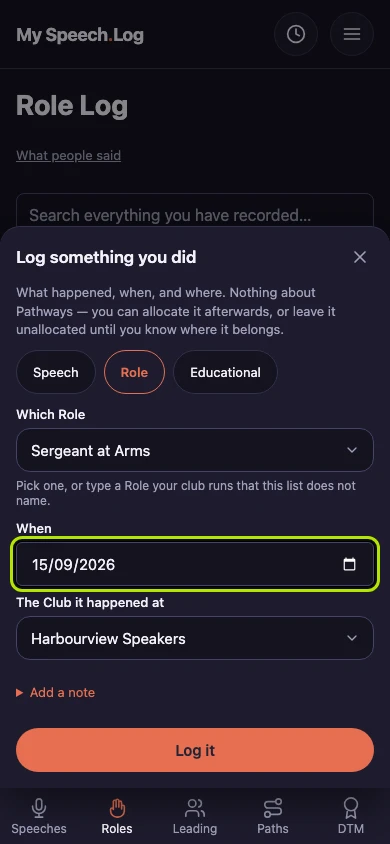
Check the date under When. The app fills in your Club's usual meeting day, so it is often right already. Change it if the meeting was on a different day.
Choose the Club under The Club it happened at. The app starts with the Club you logged at last time. Press Add a note if you want to remember something about the day.
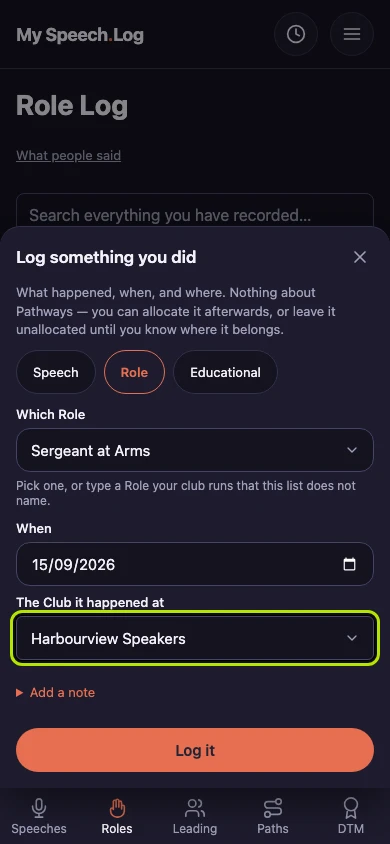
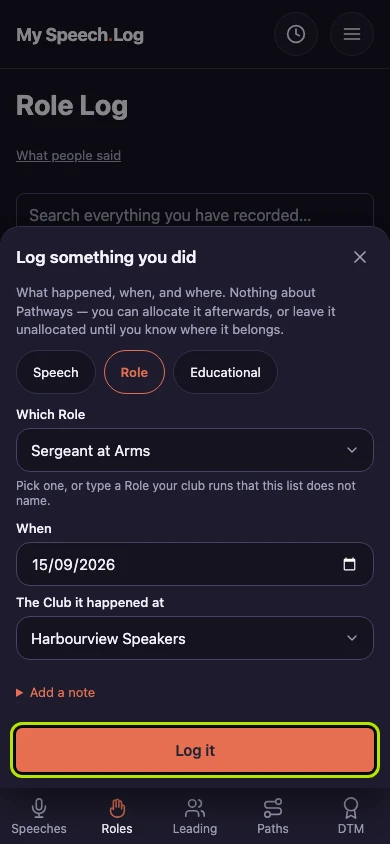
Press Log it to save the role. You go back to your Role Log, where the new role is marked. You can say which Level it counts toward later, or leave it as it is.