Making a role count toward a Level
Allocating tells the app which Level of a Path a role counts toward. You can do it any time after logging the role, or leave it as long as you like.
6 steps
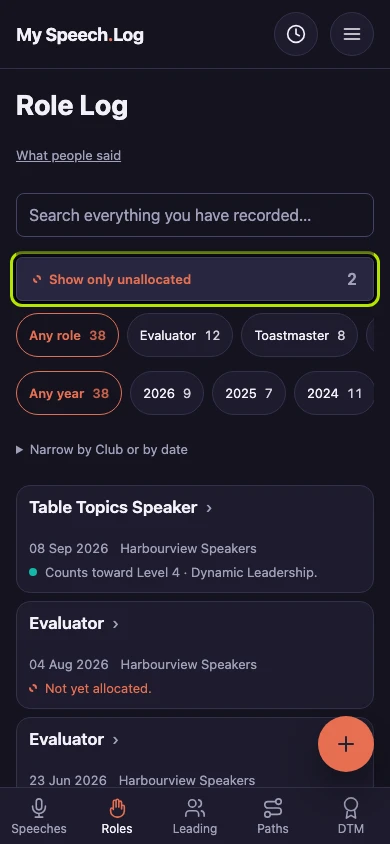
Press Roles to open your Role Log. Then press Show only unallocated to see the roles that do not count toward a Level yet. You can leave a role that way as long as you like.
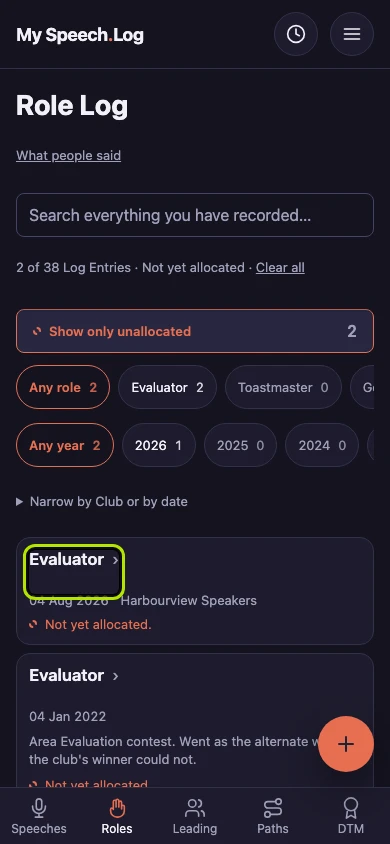
Press the title of the role you want to allocate. Allocating means saying which Level of a Path this counts toward.
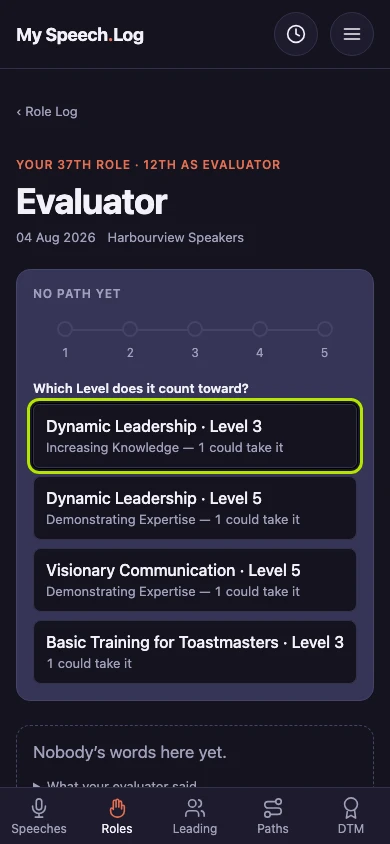
Press the Path and Level this role counts toward, under Which Level does it count toward? Each choice says how many spots on that Level could still take this role.
Type a short note to yourself under One thing to do better next time, if you like. Your last note on this Path is shown above it, and this one comes back the next time you allocate here.
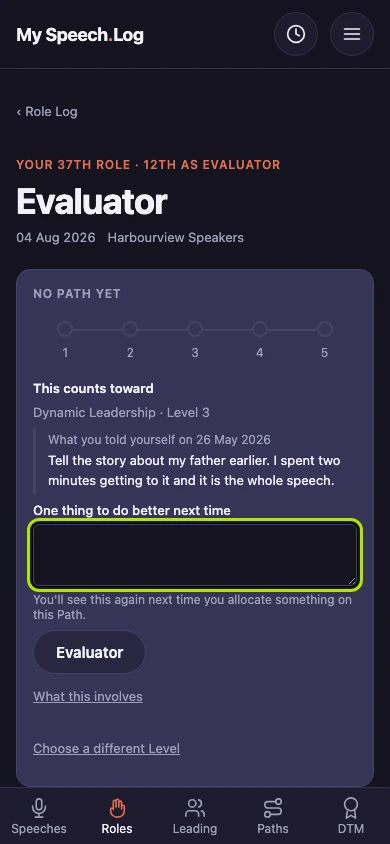
Press the button with the role's name, Evaluator here, to save your choice — there is no separate Save button. Press What this involves first if you want to read what the Level asks for.
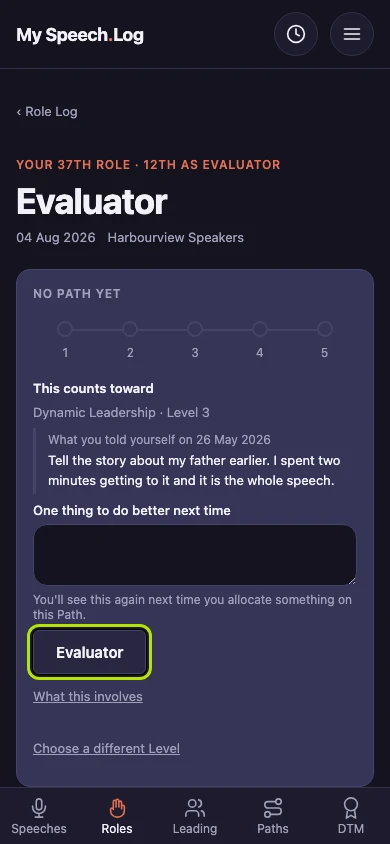
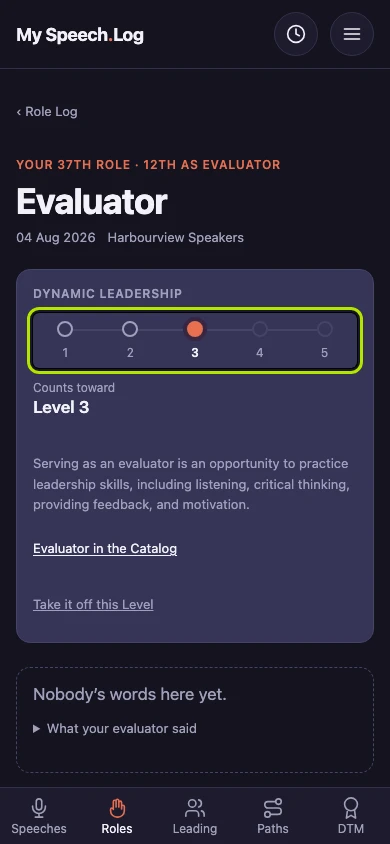
The role now counts toward the Level with the filled circle, and the Path's name is above the circles. If you change your mind, press Take it off this Level.