Starting a Path
Starting a Path records the Path you ordered from Toastmasters, and the Level you are on, so the app can count what you log toward it. Do it once for each Path.
8 steps
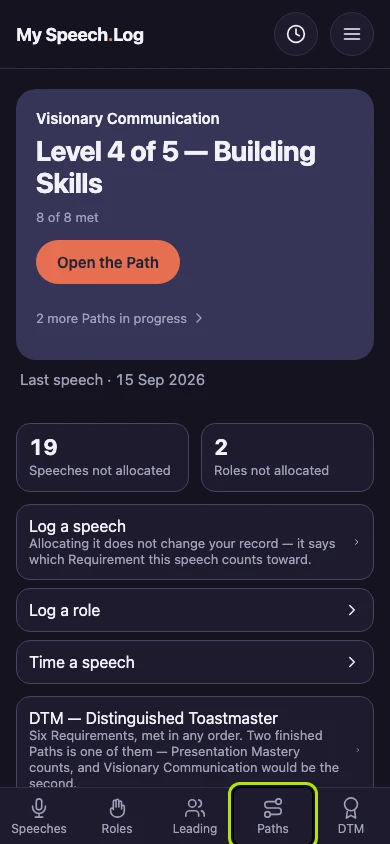
Press Paths to open My Paths.
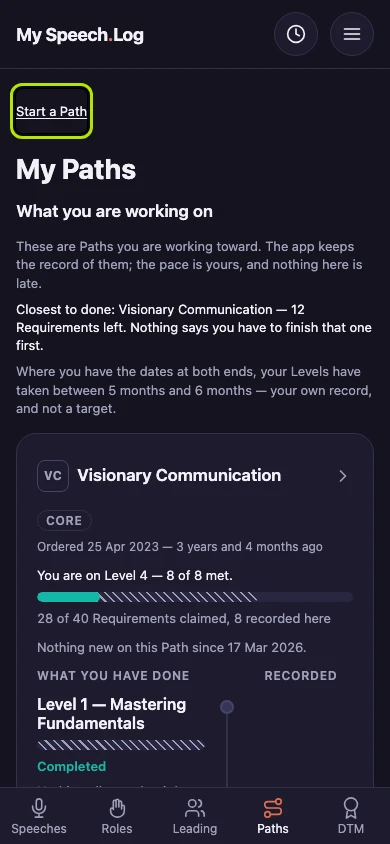
Press Start a Path. The screen moves to a section with the same name. Press the heading Start a Path there if the section is closed.
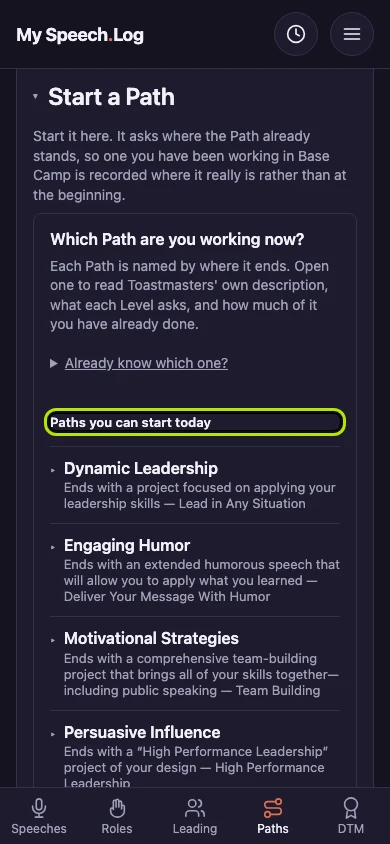
Under Paths you can start today, each Path has a line about how it ends. If you already know the name, press Already know which one? and choose it from a list.
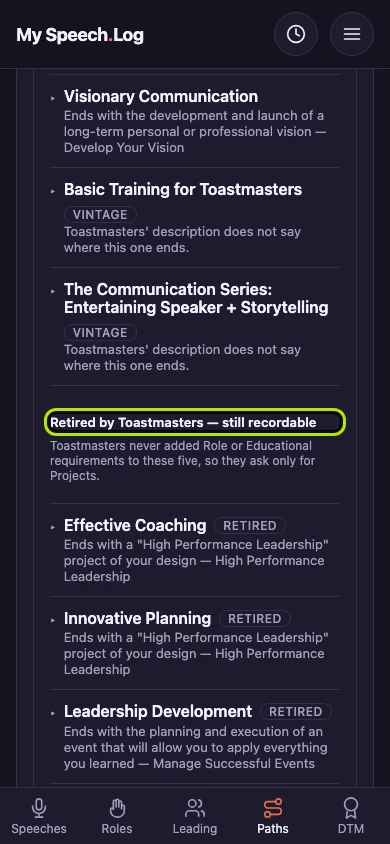
Scroll further for Paths that Toastmasters has retired. You can still record one of these if it is the Path you are working on.
Press a Path's name to read Toastmasters' description and what each Level asks for. Press See every Project in this Path to open the full list in the Catalog.
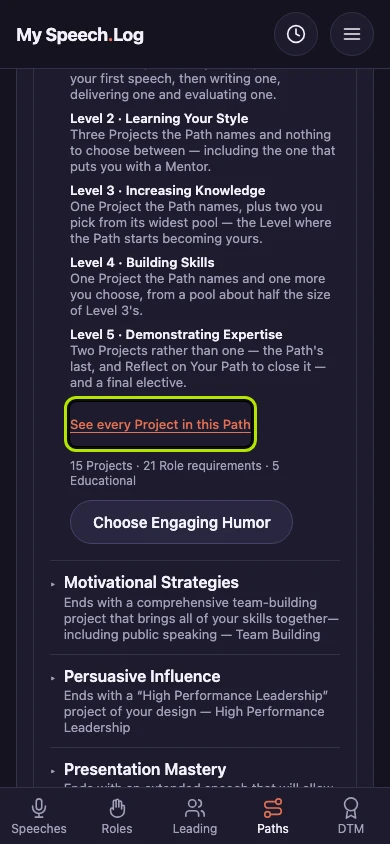
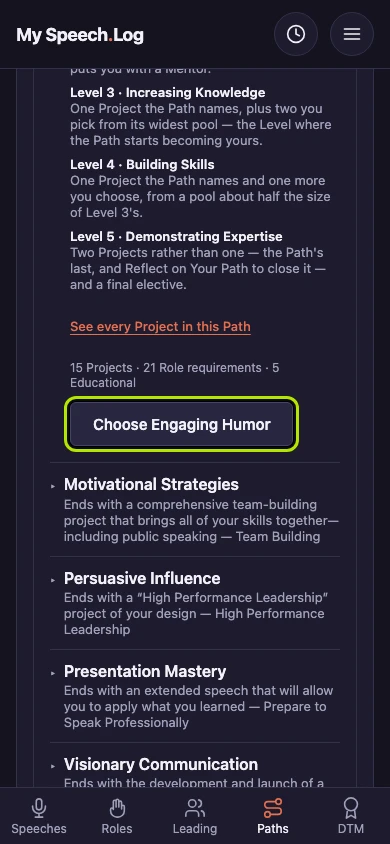
Press the Choose button under the Path you want. If your Path is missing from the list, press Don’t see your Path? to read what to do.
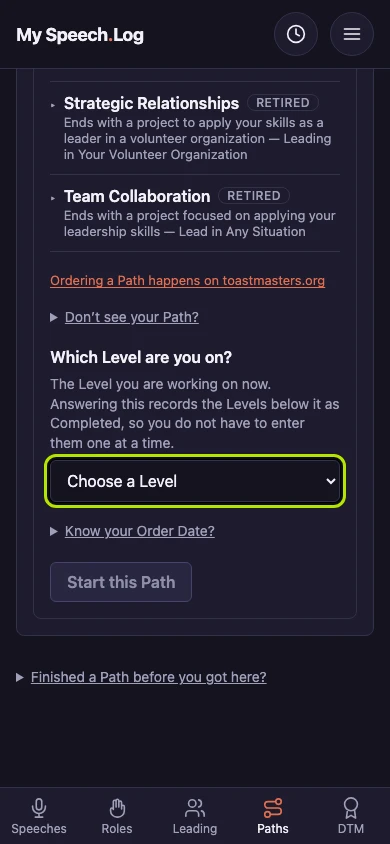
Choose your Level under Which Level are you on? The app records the Levels below it as Completed, so you do not have to enter them one at a time.
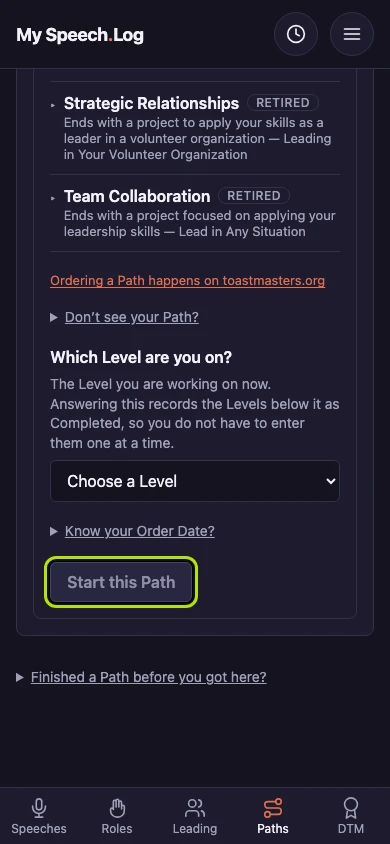
Press Start this Path to save it. If you know the day you ordered the Path, press Know your Order Date? first and enter it. You can leave the date out.


Next: Seeing a Path's Levels